
How to Approve Features
Reviewing and signing off on each feature is how you move your project toward launch.
Table of Contents
Reporting issues is one half of UAT. The other half — the best part — is approving features. As you work through your site, you’ll confirm each piece is ready, and those approvals are what give us the green light to launch. This page covers how that works.
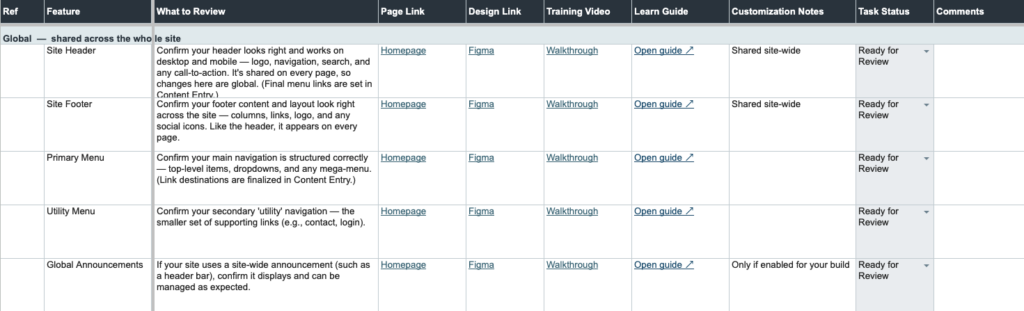
Your UAT spreadsheet, at a glance
Alongside Marker.io, we provide a UAT spreadsheet that lists everything for you to review. Think of it as your checklist and progress tracker in one place. Each row is one feature, with columns that give you what you need to review it:
- Feature — what you’re reviewing.
- Description / Testing instructions — a short overview of what it does and what to check.
- Page Link — where to see it on your site.
- Design Link — the design it was built from, when available.
- Training / Videos — a short walkthrough, when available.
- Task Status — where you mark your review (this is how you approve).
- Comments — a spot for your notes about reviewing or approving.
The spreadsheet tells you what to review and where; the learn.tri.be guides explain how each feature works in more detail.
Reviewing a feature
For each row, take a look at the feature using the page link, design link, and any training video provided. Try it out the way your visitors or editors would. If something’s off, report it in Marker.io — that’s always where issues go. Then update the Task Status to reflect where you’ve landed.
Setting the Task Status
The Task Status column is how you tell us where each feature stands. There are four options:
- Ready for Review — We’ve set this when the feature is ready and waiting for you. It’s your cue to take a look.
- Issues — You’ve reviewed it and reported one or more issues in Marker.io for this feature.
- Discussion — You’d like to talk this one through together before deciding.
- Client Approved — You’re satisfied and officially signing off. 🎉
As you move features from Ready for Review to Client Approved, you’ll see your progress add up — and we’ll see exactly what’s settled and what still needs attention.
A note on the issues you report: when we’ve addressed one, we’ll let you know on the ticket in Marker.io and mark it complete — you don’t need to reply to confirm each fix. Approving the feature here in the UAT spreadsheet is your overall sign-off, and it covers the fixes we’ve made along the way. (If you’d like to double-check a particular fix first, just say so on the ticket and we’ll wait for your okay.)
Using the Comments column
The comments column is for notes about reviewing or approving a feature — things like “Approving, but we’ll update this copy ourselves later” or “Looks great.” It’s the one exception to keeping everything in Marker.io, and it’s meant to stay lightweight.
Please don’t use it to report problems. Anything that’s an actual issue — a bug, an enhancement, or a question — should go through the Marker.io widget instead, so it’s tracked and nothing slips through. Keeping issues in Marker and approval notes in the spreadsheet means there’s always one clear home for each kind of feedback.
Related: How to report an issue · Issue Types · Priority Levels